Launchpad
A touch-first sampler and step sequencer built around the Novation Launchpad Mini MK3. Four colour-coded banks, 64 pads, auto-slicing loops, per-pad one-shots, live audio recording, and a sequencer that records either to the grid or to raw time.
Overview
Launchpad turns the physical Launchpad Mini MK3 grid into a full performance sampler. Four 16-pad quadrants, each running its own step sequencer, each switchable between "slice a loop across its pads" and "load a different one-shot per pad". It plays great on the hardware, plays fine in the UI, and records audio back in from the input.
What it does
- Four independent banks laid out as quadrants of the 8×8 grid. Red (A) top-left, Blue (B) top-right, Green (C) bottom-left, Magenta (D) bottom-right.
- Two bank modes. LoopSlice splits a single audio file across 16 pads with equal-division or transient-detected slices. Individual loads a different one-shot per pad.
- A step sequencer per bank — up to 128 steps, speed multipliers from 0.25× to 2×, and two recording modes: quantized (snap to grid) or free (capture raw time, quantize later).
- Touch drag-through: drag a finger across pads in LoopSlice mode to play slices in sequence and record them into the sequencer as you go. Up to four simultaneous drags, one per bank.
- Audio recording — 60 seconds of input capture, bar-synced or one-shot, committed straight into a bank.
- Tight Launchpad MK3 integration — direct Programmer-Mode RGB control in standalone, or linear-chromatic mapping for use as a VST with the hardware.
- Particle visuals — an OpenGL particle system that bursts on transients and peaks, reactive to what's playing.
Quick Start
Without a Launchpad
- Load the plugin. The 8×8 grid appears with four coloured quadrants.
- Click
IMPORTon the transport bar and drop an audio file — by default it slices across Bank A. - Click any red pad: that slice plays. Click-and-drag down a column to trigger slices in sequence.
- Press
PLAY. In the sequencer view, paint steps on the Bank A row — each paint is a slice.
With a Launchpad Mini MK3 (Standalone)
- Connect the Launchpad via USB.
- Launch the standalone — the plugin auto-enters Programmer Mode and lights the four quadrants.
- Tap pads to play. Drag across pads for slice runs. Sequence it all from the UI.
With a Launchpad Mini MK3 (VST)
- In your DAW, create a MIDI track with Launchpad as the instrument.
- Set MIDI From to the Launchpad; enable Monitor: In.
- On the Launchpad, press Drums mode (or load a custom linear-chromatic template).
- (Optional, for LEDs) Route the plugin's MIDI output back to the Launchpad on a second track.
- See § Launchpad Hardware for details.
The Interface
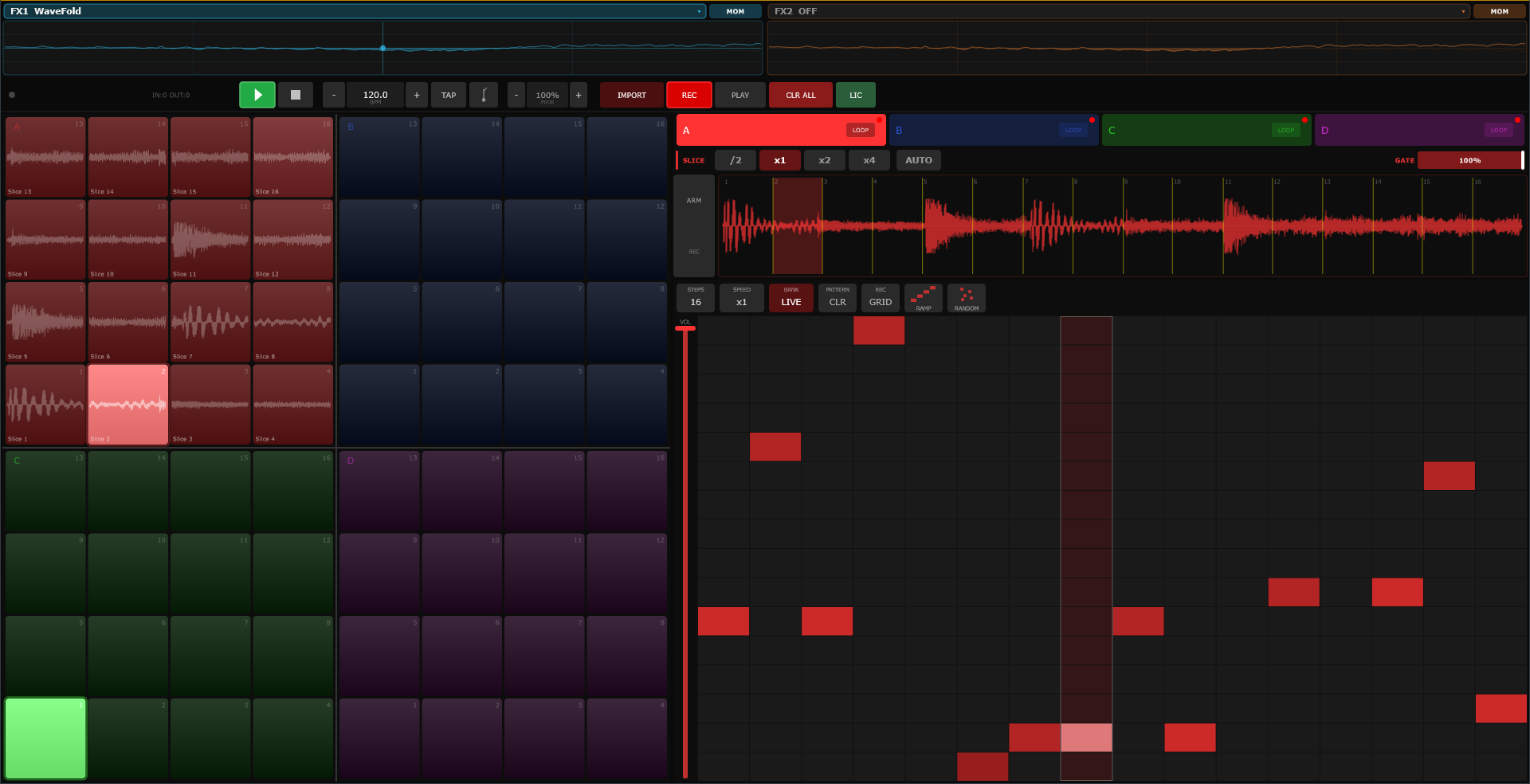
The window is split in two: the 8×8 grid on the left, the bank-specific panel on the right. A transport bar runs along the top.
Transport Bar
- Launchpad status
- Connection indicator — green dot when
LPMiniMK3 MIDIis attached, grey otherwise. ShowsIN/OUTMIDI message counts. - PLAY / STOP
- Standalone transport. Greyed when the host controls tempo.
- BPM
- 20–300 BPM.
−/+buttons, or drag the display. Follows host when available. - TAP
- Tap-tempo. Averages the last four taps.
- METRONOME
- Toggle click. 1200 Hz woody sine, quarter-notes.
- PROBABILITY
- Global step probability
0–100%. Applies to all four sequencers. Turns orange when below 100%. - IMPORT
- File browser for loading audio into the current bank.
- REC
- Audio-recording arm/record/stop. See § Audio Recording.
- OUTPUT MODE
- Three-state toggle:
PLAY·SILENT·MON. See below. - CLR ALL
- Dark-red button; clears every sequencer. Dangerous action.
Output Mode
- PLAY
- Default. Both the sequencer and live pad hits produce audio.
- SILENT
- Sequencer muted; live pad hits still audible. Practise mode — play over nothing.
- MON
- Monitor. Only the sequencer is audible; live pad hits are silent. Use when writing patterns by tapping without hearing the tap itself.
The 8×8 Grid
Four colour-coded quadrants, Y-axis flipped so the visual top maps to hardware rows 4–7:
| Cols 0–3 | Cols 4–7 | |
|---|---|---|
| Rows 4–7 (top) | Bank A (Red) | Bank B (Blue) |
| Rows 0–3 (bottom) | Bank C (Green) | Bank D (Magenta) |
Each pad is a 4×4 block inside its quadrant. Interaction covered in § Pads & Gestures.
Bank Panel
The right side of the window, showing everything about the currently selected bank:
- Bank selector tabs
- A / B / C / D, with each tab in its bank colour. Each tab also has a mode button to toggle between LoopSlice and Individual.
- Waveform view
- The loaded loop or selected pad's sample, with slice markers overlaid. Active slices brighten when triggered.
- Slice control strip
- (LoopSlice mode only) —
/2,x1,x2,x4, andAUTO. - Sequencer
- Step grid, speed, count, mute, clear, Q/FREE toggle, staircase and random fill. Volume slider on the right.
The Four Banks
Each bank is an independent sampler and sequencer. Banks are named by their position in the quadrant and by their colour.
| Bank | Position | Colour | Rows / Cols | MIDI Range |
|---|---|---|---|---|
| BANK A | Top Left | Red | rows 4–7 / cols 0–3 | MIDI 36–51 |
| BANK B | Top Right | Blue | rows 4–7 / cols 4–7 | MIDI 52–67 |
| BANK C | Bottom Left | Green | rows 0–3 / cols 0–3 | MIDI 68–83 |
| BANK D | Bottom Right | Magenta | rows 0–3 / cols 4–7 | MIDI 84–99 |
What each bank owns
- 16 pads with their own samples (one file sliced for LoopSlice, or 16 one-shots for Individual).
- A mode toggle (LoopSlice ↔ Individual).
- A dedicated step sequencer with its own step count, speed, mute, and volume.
- Its own colour, used on the hardware LEDs, the UI grid, the bank tab, and the sequencer lanes.
LoopSlice vs Individual
Each bank has one of two modes. Toggle it via the mode button on the bank selector tab.
LoopSlice
- Load one audio file across the whole bank.
- The file is automatically split into equal slices (or at transient positions).
- Each of the 16 pads plays one slice.
- Mono mode is enabled automatically — only one slice from the bank plays at a time, so sliced loops don't overlap themselves.
- Ideal for drum loops, acapellas, breakbeats, anything you want to rearrange.
Slice control strip
- /2
- Halve — 8 slices. Good for longer loops.
- x1
- Default — 16 slices (one per pad).
- x2
- 32 slices. Only the first 16 map to pads; use the sequencer to reach the rest.
- x4
- 64 slices. Ultra-fine.
- AUTO
- Transient-detection slicing. Energy-ratio onset detection snapped to zero-crossings (±64 samples) so slice points never click. Adapts sensitivity to the loop's dynamic range.
Individual
- Load one sample per pad.
- Right-click a pad or drop a file on it to set its sample.
- Polyphonic — the 32-voice pool is shared across all banks.
- Ideal for drum kits, percussion, impacts, or any collection of one-shots.
Pads & Gestures
Pads are the main way you play. Everything below works identically on the UI grid and the hardware grid.
Gestures
- Tap / click
- Trigger the pad's sample. Y-position sets velocity — tap near the top of the pad for a soft hit, near the bottom for a hard hit.
- Right-click / long-press
- Opens the sample picker. In LoopSlice mode, this offers "load loop"; in Individual mode, browse one-shots for that specific pad.
- Drag & drop
- Drop an audio file onto a pad to load it. In LoopSlice mode it replaces the whole bank's loop; in Individual mode it loads just that pad.
- Drag-through
- (LoopSlice only) Drag a finger from pad to pad — slices trigger in sequence at fixed velocity. Drag-through records into the sequencer as you go, so a drag becomes a pattern. A visual trail fades behind the finger.
- Multitouch
- Up to four simultaneous drag-throughs, one per bank.
Visual feedback
- Pads show a waveform thumbnail of their loaded sample.
- Trigger flash — the pad brightens briefly on every trigger, even empty pads.
- Playing indicator — pads whose voices are currently sounding stay lit brighter than idle.
- LEDs on the hardware mirror all of this in real time (standalone only; VST mode requires the plugin's MIDI output to be routed back to the Launchpad).
The voice pool
Launchpad has 32 voices shared across all banks. When you exceed 32 simultaneous sounds, the oldest is stolen. Voices use linear-interpolation playback and an exponential release envelope — they fade out when the key lifts rather than cutting off hard.
The Step Sequencer
Each bank has a dedicated step sequencer, shown on the right side of the UI when that bank is selected. Up to 128 steps, four speed multipliers, two recording modes, and a couple of pattern generators.
The grid
Rows are pads (16 per bank); columns are steps. Click a cell to toggle a note; velocity is painted by the click's Y position and shown as cell brightness. The playhead highlights the current step as a white outline.
Controls
- Step Count
- 1–128. Tap the number to open a popup picker.
- Speed
- Multiplier:
x2 · x1 · x0.5 · x0.25. Per-bank — one bank can run fast while another plays halftime. - MUTE
- Mutes this bank's sequencer output. Clock keeps running.
- CLR
- Clears every step in this bank's sequencer.
- Q / FREE
- Recording mode. See below.
- Staircase
- Pattern generator. Fills the grid with an ascending diagonal — a quick melodic fill across pads.
- Random
- Fills the grid with random step positions across all pads in the bank.
- Volume
- Vertical slider on the far right of the sequencer. Per-bank output level.
Quantized vs Free recording
- Q — Quantized
- Default. Live pad hits snap to the nearest grid step. Velocity is painted into the cell. Traditional drum-machine behaviour.
- FREE
- Raw-time recording. The playhead is a continuous line; hits are recorded as markers at their actual time with no quantisation. A small blue dot appears when raw hits are pending — tap
Qto snap them to the grid non-destructively.
Probability
The global probability control on the transport bar applies to every step across every bank. At 75% each step has a 1-in-4 chance of being skipped — a cheap, global way to humanise a pattern.
Audio Recording
Launchpad can record incoming audio and drop it straight into a bank. 60 seconds of capture, bar-synced or free-start.
The workflow
- Click
RECon the transport bar to arm. - Pick a mode in the ArmRec pop:
- OneShot — recording starts immediately when you commit.
- Loop — recording starts on the next bar boundary, length set by bars.
- The button turns amber while armed. Input level animates as audio flows in.
- When recording ends the button turns red and the progress fills, then the take commits to the target pad / bank.
State machine
Idle ─▶ Armed ─▶ Recording ─▶ Done
(bar boundary (buffer full
or immediate) or manual stop)
What happens to the take
- In LoopSlice mode, a recorded take becomes the bank's loop. Slicing re-runs automatically.
- In Individual mode, the take becomes the selected pad's one-shot.
- If the sequencer is in FREE mode, the raw timing of any hits during recording is preserved — you can quantise after the fact.
Sample Library
Launchpad keeps a persistent catalog of every loop and one-shot you've used, so you can recall them instantly.
- Two lists are maintained: Loops (for LoopSlice banks) and OneShots (for Individual banks).
- Stored on disk in the user's application-data folder — survives across sessions.
- On startup, missing files are marked as broken but kept in the list for re-linking.
Picker popups
- Sample bank popup
- (LoopSlice) Full-screen scrollable list of saved loops. Click to load.
ADD NEW…imports a file from disk. - One-shot picker popup
- (Individual) Floating list anchored near the clicked pad. Each entry has a remove (
×) button;CLEARdeletes all samples from that pad;ADD NEW…imports.
Launchpad Hardware
Launchpad integrates with the Novation Launchpad Mini MK3 in two different ways, depending on whether you run it standalone or as a VST in a DAW.
Standalone
- Plug in the Launchpad over USB and launch the standalone.
- The plugin opens both the
LPMiniMK3 MIDI(input) andLPMiniMK3 DAW(output) ports automatically. - It sends a SysEx command to enter Programmer Mode, which unlocks full RGB control of all 64 pads and the scene buttons.
- LEDs update at 30 Hz in batched RGB messages — bank colours, trigger flashes, playing indicators, and drag trails all render on the hardware.
VST (e.g. Ableton Live)
- In the DAW's MIDI preferences, enable Track on both
LPMiniMK3 MIDIinput and output. - On the Launchpad, press the Drums button (built-in mode — no custom template needed), or load a linear-chromatic Custom Mode.
- Create a MIDI track and insert the Launchpad plugin as the instrument. Set MIDI From → Launchpad Mini MK3 MIDI and Monitor: In.
- For LED feedback, create a second MIDI track with MIDI From → Launchpad plugin track's output, MIDI To → Launchpad Mini MK3 MIDI, Monitor In. The plugin emits palette note messages to colour the LEDs.
MIDI Mapping
Two mapping schemes. Both result in notes 36–99 covering every pad.
Bank × pad (Drums mode default)
note = 36 + (bankIndex × 16) + padIndex Bank A: MIDI 36–51 Bank B: MIDI 52–67 Bank C: MIDI 68–83 Bank D: MIDI 84–99
Physical row/col (Custom Mode)
note = 36 + (row × 8) + col row 0 = bottom col 0 = left
Velocity
Velocity comes from Y position on pad press (UI) or from the Launchpad's velocity-sensitive pads (hardware). It's mapped linearly to amplitude in the voice engine, so a soft top-of-pad hit is genuinely quieter than a hard bottom-of-pad one.
LED palette (VST mode)
In VST mode the plugin emits palette-index note-on messages on its MIDI output. Each bank uses a small palette of colours for normal, bright, and playing states. Route those back to the Launchpad's input to see them on the hardware.
Visuals & State
Audio-reactive particles
The right side of the UI hosts an OpenGL particle system that bursts on detected transients and RMS peaks.
- Additive blending so particles accumulate.
- Colour is energy-mapped — red at low energy, yellow at mid, white at peaks.
- Simple gravity physics with drag. Up to 2048 particles on screen.
- Purely visual — doesn't touch audio.
Session state
Launchpad saves its full state with the DAW session (or the standalone's session file). That includes:
- All four sample banks — loaded loops, per-pad one-shots, slice positions, modes.
- All four sequencers — grid data, step count, speed, mute state, mono mode, volume.
- Pending audio recordings.
- Transport settings — BPM (if not host-driven), metronome, probability, output mode.
- The persistent sample library catalog.
Factory presets are not shipped in this version — state persistence is session-based.
Workflows & Recipes
Recipe 1 · Chop a break in 30 seconds
- Drop a breakbeat onto any pad in Bank A. LoopSlice is the default mode.
- Press the
AUTOslice button — transients are detected and snapped to zero-crossings. - Drag a finger across the four Bank A rows diagonally to play slices in sequence. The sequencer records it.
- Press
PLAY— your drag is now a playing pattern.
Recipe 2 · Live-performance rig
- Bank A: LoopSlice, a drum break.
- Bank B: LoopSlice, a vocal or bass loop.
- Bank C: Individual, drum kit one-shots (kicks, snares, hats).
- Bank D: Individual, impacts and FX.
- Set each bank's sequencer to a different step count (
16,12,8,7) for automatic polymetric evolution.
Recipe 3 · Humanised patterns
- Write a tight kick-snare-hat sequence in Bank C.
- Drop the global
PROBABILITYto85%. - Every loop now quietly drops a step here and there — a cheap "real-drummer" flavour without editing anything.
Recipe 4 · Capture and chop live input
- Route a mic or guitar into Launchpad's input.
- Click
REC, pick Loop, set 2 bars. - Hit record — capture commits to Bank A on the next bar.
- Tap
AUTOin the slice strip. Your take is now playable across 16 pads.
Recipe 5 · Free record, then quantise
- Switch the bank's sequencer to
FREE. - Press
PLAYand tap out a pattern live — it records at its actual timing. - When you've got the feel right, tap
Qto quantise the raw hits to the grid. The raw take is preserved so you can bounce between the two.
Recipe 6 · Write patterns silently
- Set the output mode to
MON. - Live taps are silent, but the sequencer still records and plays what's already there.
- Useful when auditioning the sequencer in context without hearing your own finger noise.
Tips & Troubleshooting
Tips
- Prime step counts. Give each bank a different prime-ish step count (16, 13, 11, 7) to get long, evolving polymetric patterns out of the box.
- AUTO before you tweak. Always try transient-detection slicing before switching to a manual division — it handles most breakbeats cleanly.
- Velocity from Y is real. Musicians under-use it. Tap the top of the pad for ghost notes, the bottom for accents.
- Mono mode is why sliced loops don't sound bad. Don't disable it on LoopSlice banks unless you genuinely want the overlap.
- PROBABILITY is a quick-win texture. 85–95% adds life without re-writing a pattern.
- Use SILENT to practise. Disable the sequencer output, jam over nothing, then swap back to PLAY.
Troubleshooting
- Launchpad isn't connecting (standalone)
- Check that no other app holds
LPMiniMK3 MIDIopen. Only one host can use it at a time. Unplug/replug if you swapped from a DAW. - Hardware plays but LEDs don't light (VST)
- You need the return MIDI routing (plugin out → Launchpad in) described in step 4 of the VST setup.
- Slices click at the boundaries
- Use
AUTO— it snaps slice edges to zero-crossings. Equal-division slicing on sample-precise loops may land on non-zero samples. - Bank won't change mode
- Tap the mode button on the bank's tab, not the tab itself. The tab selects the bank; the mode button toggles LoopSlice/Individual.
- Sequencer running but silent
- Check output mode (is it
SILENTorMON?), bank mute, bank volume, and that the pads actually have samples. - Recording never started
- In Loop mode, recording waits for the next bar. Arm a bit before the downbeat.
- The grid drag-through doesn't record
- Drag-through recording only happens in LoopSlice mode. Individual-mode pads don't auto-sequence from drags.
- Samples showing as missing
- The library keeps path references. If you moved the source files, open the picker and re-link them.
Control Reference
Alphabetical index of every top-level control.
| Control | Location | Values | Notes |
|---|---|---|---|
| AUTO (slice) | Slice strip | toggle | Transient-detect slicing. |
| Bank Mode | Bank tab | LoopSlice / Individual | Per-bank mode toggle. |
| Bank Tab A–D | Bank selector | select | Picks which bank's panel is shown. |
| BPM | Transport | 20–300 | Disabled when host-driven. |
| CLR (sequencer) | Sequencer header | button | Clears this bank's sequencer. |
| CLR ALL | Transport | button | Clears every sequencer. |
| IMPORT | Transport | file dialog | Load audio into current bank. |
| METRONOME | Transport | toggle | 1200 Hz click, quarter-notes. |
| MUTE (bank) | Sequencer header | toggle | Mutes this bank's sequencer. |
| OUTPUT MODE | Transport | PLAY · SILENT · MON | Live/sequencer routing. |
| PLAY / STOP | Transport | toggle | Standalone transport. |
| PROBABILITY | Transport | 0–100% | Global step probability. |
| Q / FREE | Sequencer header | mode | Quantised vs raw-time recording. |
| Random (pattern) | Sequencer header | button | Fills grid with random steps. |
| REC | Transport | arm → record → stop | Audio input capture. |
| Slice /2 · x1 · x2 · x4 | Slice strip | button | Equal-division slice count (LoopSlice). |
| Speed (bank) | Sequencer header | 0.25× · 0.5× · 1× · 2× | Per-bank tempo multiplier. |
| Staircase | Sequencer header | button | Diagonal pattern fill. |
| Step Count | Sequencer header | 1–128 | Loop length in steps. |
| TAP | Transport | button | Tap-tempo, averages 4 taps. |
| Volume (bank) | Sequencer · right edge | 0–1 | Per-bank output level. |