TouchMachines Glyph →
User Manual

Glyph

A touch-first drawing instrument. Sketch strokes into a 2D plane with your fingers; per-lane playheads sweep through the strokes and turn them into music — pitch from where you drew, timing from where the sweep crosses them, all snapped to scale. Internal Karplus-Strong pluck monitor convolved through a measured guitar body, plus reverb. Multi-touch parallel drawing, plane warps (mirror + rotation), per-stroke arm/ghost/mute, pinch-to-scale, multi-mode reading.

Plugin · VST3 / Standalone MIDI Output + Internal Pluck-with-Body Monitor 4 Lanes · Touch-first

Overview

Glyph turns drawing into a musical performance. You ink strokes into a 2D plane with one or more fingers; up to four playheads sweep through them and trigger MIDI notes whose pitch comes from where on the plane each stroke was drawn. The visual stroke and the note that plays are perceptually one-to-one — the audience sees the playhead cross a stroke at the moment they hear the note.

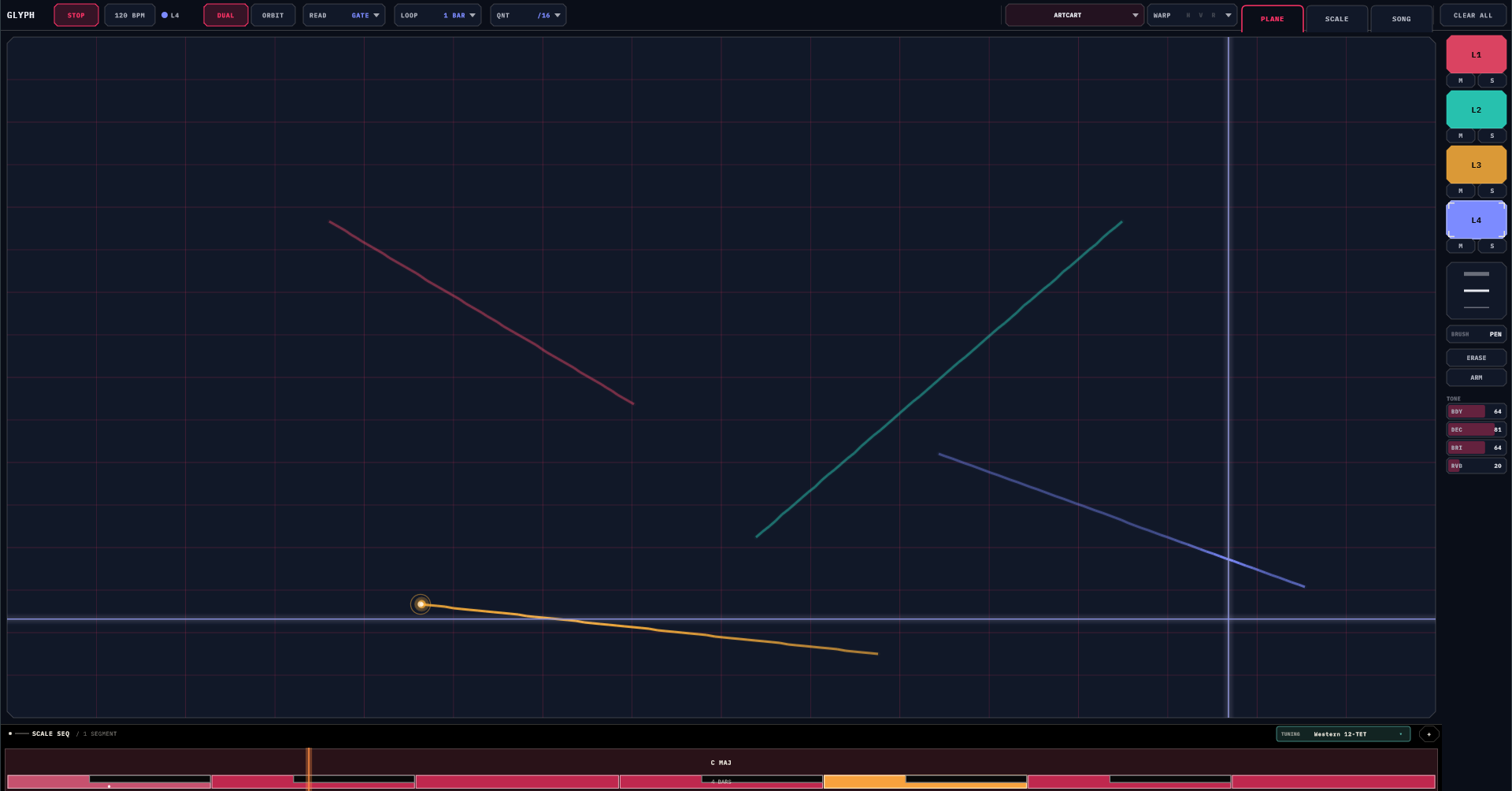
Glyph PLANE page — four colored lanes of strokes across a 2D plane
The PLANE page — four ink colors, each a lane with its own playhead and MIDI channel.

What it is

  • Four independent ink colors, each a separate lane with its own MIDI channel.
  • Three reading modes per lane — DUAL (H + V sweeps, piano-roll feel), ORBIT (rotating clock-face ray with radial pitch), and global TRACE (continuous trace at quantize ticks across either DUAL or ORBIT).
  • Per-lane polyrhythm. Each lane has its own sweep rate; the four sweeps drift apart visually and audibly.
  • Plane warps — mirror-H, mirror-V, and continuous rotation. Non-destructive: original strokes stay; the warps are derived virtual copies.
  • Per-stroke states via the ARM tool — tap any stroke to cycle Armed → Ghost (probabilistic) → Muted (silent) → Armed.
  • Multi-touch parallel drawing — up to 4 fingers, each finger lands in a different lane.
  • Pinch-to-scale the selected lane's strokes around the pinch midpoint.
  • Built-in pluck-and-body sound engine — Karplus-Strong pluck convolved through a measured guitar IR + reverb tail. Live tone controls for body mix, decay, brightness, reverb. Plus per-lane MIDI out for routing to other instruments.
  • MIDI CC output — each lane can also stream its scanned drawing data (contact X/Y position or playhead sweep) as continuous MIDI CC, so a drawn shape can modulate parameters on another instrument, not just trigger notes. Two independent CC mappings per lane.
  • Scale-aware. 16 scales with root selection + bar-segmented scale sequencer for chord progressions.
  • Pattern sequencer (SONG tab). Chain saved patterns into a song. Tap a pattern in the library to add a 1-bar step; tap again to extend it; build up a song one tap at a time. The engine loads each step on bar boundaries, in sync with host transport.

What it isn't

  • Not a step sequencer — strokes are continuous, not bound to a fixed grid.
  • Not a free-form synth — pitches snap to scale; the design enforces musical phrasing.
Mental model Drawing IS composing. The plane is a graphic score; the playheads are how the score gets read; the warps and tools transform what you've drawn without losing the original.

Quick Start

  1. Load Glyph in Liveset, your DAW, or open the standalone.
  2. Press PLAY — on the host transport in a DAW (Glyph follows host), or the PLAY chip in Glyph's own top bar in the standalone.
  3. Draw a stroke with one finger on the plane. The H + V sweep markers cross it; you hear a plucked-guitar note.
  4. Add 1–3 more fingers simultaneously — each finger draws into a different colored lane. Build a 4-color sketch in one gesture.
  5. Switch lanes via the side rail to dial settings. Each lane has its own MODE / LOOP / QNT chips in the top bar.
  6. Try the warps — tap WARP, turn on MIR-H + MIR-V, pick a rotation rate, and watch the plane spin and reflect.
  7. Tap ARM, then tap a stroke — it becomes dashed (Ghost) then ghosted (Muted) then back. Dial individual strokes in/out without redrawing.
  8. Save the patch — tap the preset chip in the top bar → + SAVE, name it.

The Interface

One main view with two pages (PLANE for performing, SCALE for picking key). A persistent top bar across both, and a side rail on the right for lane + tool selection.

Top Bar

Left to right (per-lane chips on the left, global toggles on the right). Subtle vertical hairlines separate the conceptual groups.

Controls come in two clear classes: toggles (single tap, lit = on) and value chips with a chevron that open a touch popup (LOOP, the preset chip, WARP).

GLYPH
Title. Tap to open the Settings dialog.
PLAY / STOP
Standalone transport. Tap to start the playheads sweeping; tap again to stop (stopping rewinds to bar 0). In a DAW this chip is a read-only indicator — the host transport drives Glyph.
N BPM
Standalone tempo. Drag vertically on the chip to adjust (up = faster, 20–300). In a DAW it displays the host tempo.
L<N> ●
Lane badge. Shows which lane the per-lane chips operate on. Switch lanes via side rail.
DUAL · ORBIT
Reading mode for the selected lane (per-lane).
TRACE ALL
Global toggle, grouped with the reading modes. When on, all lanes switch to continuous trace mode (overrides per-lane MODE for the read; per-lane LOOP + QNT still respected). The dim ALL tag marks it as plane-wide, not per-lane like DUAL/ORBIT.
LOOP ▾
Per-lane loop length (sweeps × bars). Tap to open the radial dial; reads LOOP N BARS, value tinted in the lane color.
QNT ▾
Onset quantize for the selected lane. Tap to open the quantize popover (OFF · /16 · /8 · /4, each with a short label); the value is tinted in the lane color.
PATTERN NAME ▾
Preset chip. Tap to open the pattern browser: every saved pattern organised into folders, tap to load, + SAVE / + FOLDER, drag to re-file, per-row rename / delete. Factory patterns are read-only. See § Presets.
WARP ▾
Opens the warp popover: MIR-H / MIR-V mirrors + rotation rate + direction, all in one place. The chip shows lit H V R badges so you can see which warps are active at a glance.
PLANE · SCALE · SONG
Page tabs. Folder-tab shape, attached to the panel below. Tap to switch which surface is showing.
CLEAR ALL
Resets the whole patch back to a blank slate (strokes + per-lane settings + warps + tone + scale). MIDI routing, theme, and the SONG are preserved.

PLANE Page

The performance surface.

  • 8×8 hairline grid — decorative reference, always visible. Tinted to the active surface theme.
  • Quantize overlay — when the selected lane's quantize is non-OFF, brighter accent-colored grid lines overlay the snap targets.
  • Strokes — all four lanes' committed strokes. Armed strokes carry a soft luminous edge (the ink reads as emitted light, not flat lines) over a dim baseline, and brighten momentarily (250 ms) where the playhead crosses them. State affects render: Armed = solid + glow, Ghost = dashed, Muted = ghosted at 15% alpha. Effective-mute lanes' strokes also ghost out.
  • Sweep markers (light beams) — one per lane, in lane color: a soft gradient shaft of light with a brighter core line. Selected lane is brighter and wider. DUAL lanes show vertical (H) and horizontal (V) beams; ORBIT lanes show a rotating ray from plane center (with a haloed center dot) plus (when selected) two faint reference circles for radial pitch zones.
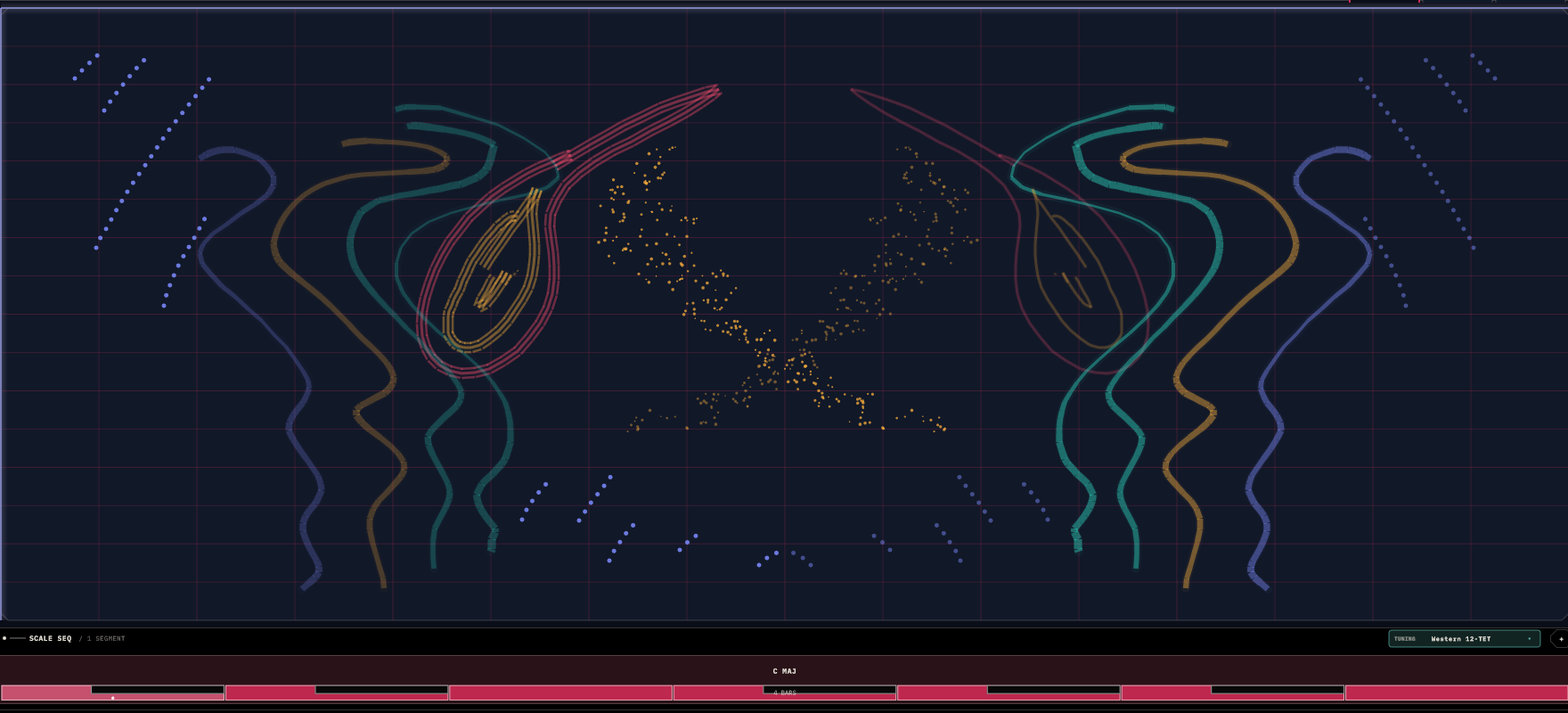
  • Mirror copies — when MIR-H or MIR-V is on, virtual stroke copies render at 0.55× alpha so you can see the symmetry.
  • Rotation — when ROT is non-zero, the entire plane (strokes + mirror copies) rotates at the chosen rate.
  • Pinch midpoint indicator — small + cross with a ring while two fingers are pinching, showing the scaling anchor.

SCALE Page

Three stacked regions — root + scale picker + circle of fifths + lane pitch activity, a two-octave keyboard, and the scale-sequencer timeline. Same as fingerbang's scale page (shared core component).

SONG Page — Pattern Sequencer

Chain your saved patterns into a looping song. The page has three regions:

┌──────── TRANSPORT ────────────────────────────────────────────┐
│  PLAY SONG    CLEAR    tap a pattern -> +1 bar per tap        │
│                                          NOW … STEP … BAR …    │
├──────────────────────────┬────────────────────────────────────┤
│  PATTERN LIBRARY         │  SONG                              │
│  ┌──┐ ┌──┐ ┌──┐ ┌──┐    │  ┌──┐ ┌──┐ ┌──┐ …                  │
│  │P1│ │P2│ │P3│ │P4│    │  │x3│ │x2│ │x1│                    │
│  └──┘ └──┘ └──┘ └──┘    │  └──┘ └──┘ └──┘                    │
└──────────────────────────┴────────────────────────────────────┘
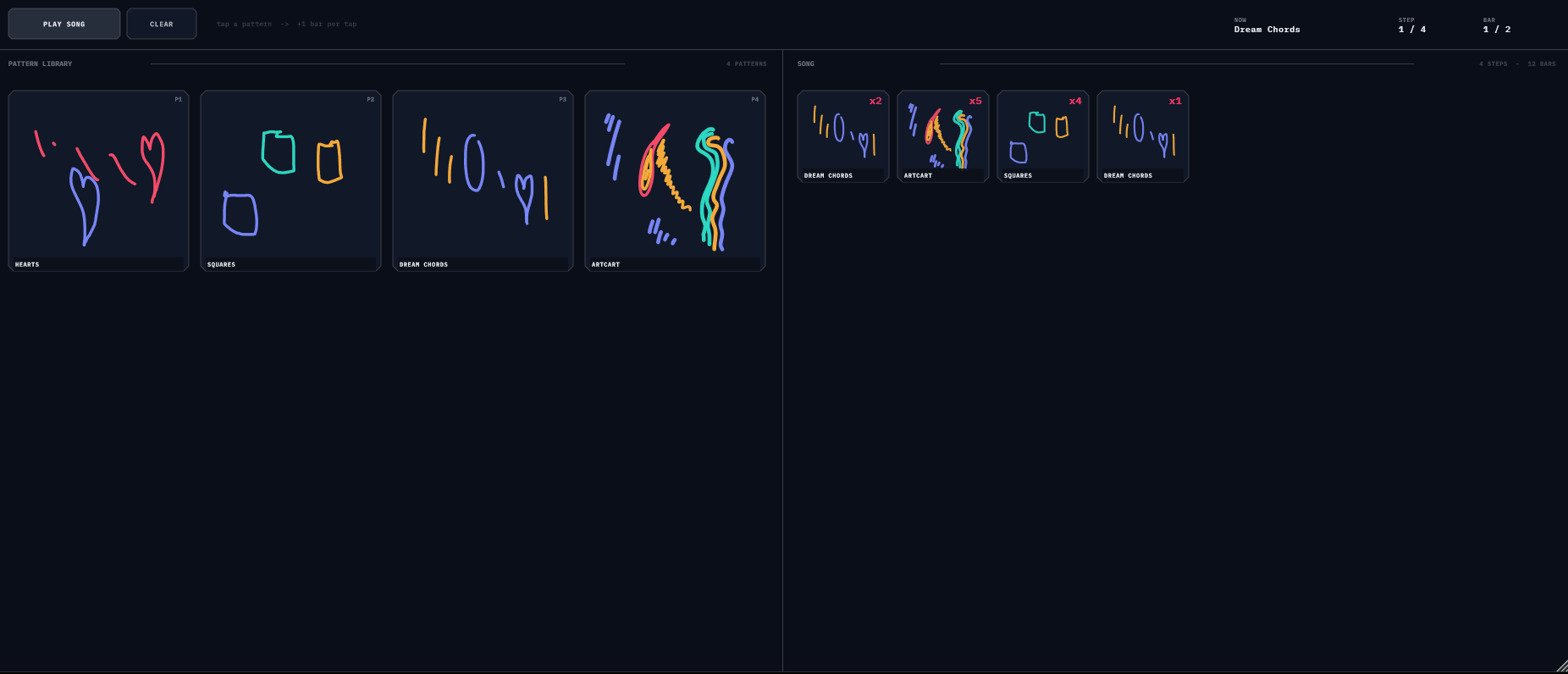
Glyph SONG page — pattern library on the left, song timeline of steps on the right
The SONG page — tap a pattern to append a 1-bar step; tap again to extend it.

Pattern Library (left). One thumbnail per saved preset. Each thumbnail renders the actual stroke geometry in lane colors so you can recognise patterns at a glance. Factory and user patterns both appear.

Song timeline (right). Each block is a step: a pattern + a bar count (x4 = play this pattern for 4 bars). The currently-playing step pulses cyan with a progress bar across its top edge.

Transport strip (top).

PLAY SONG / STOP SONG
Toggle. When you tap PLAY, the engine arms and waits for the next bar boundary so the song never starts mid-bar out of time. The readout shows NOW: STARTING ON NEXT BAR during this pre-roll.
CLEAR
Empties the song. (Does not touch the patterns themselves.)
Readout
NOW <pattern>, STEP <i / total>, BAR <m / k> updating live.

Building a song

GestureEffect
Tap a pattern in the libraryAppend a 1-bar step OR extend the last step by 1 bar if it's the same pattern. Tap-tap-tap = 3 bars of that pattern.
Tap a step in the timelineCycle its bar count 1 → 2 → … → 16 → 1.
Long-press (~650 ms) a stepRemove that step from the song.

How playback works. When PLAY is on, the engine steps through the song in sync with the host transport. At every bar boundary it advances if the current step is done; on advance, it loads the next pattern's full state (strokes + warps + scale + tone) onto the plane. Stuck notes are auto-flushed on every step swap (pending noteOffs go out at sample 0, CC123 all-notes-off is emitted on every enabled lane channel).

Don't draw while a song plays The pattern playing on the PLANE while the song is on is the song's currently-loaded step. Drawing changes on the PLANE during playback get replaced when the next step loads — stop the song before editing if you don't want that.

Saving a song. The song is part of the plugin state, so it persists with DAW save / restore and gets included in plugin presets only if you getStateInformation (DAW); user presets you save via the preset menu capture the pattern alone, NOT the song. That separation is what lets you build a song out of multiple patterns without each pattern's save clobbering the song.

Side Rail

Right edge, top to bottom:

  • 4 lane swatches — a solid chip in each lane's color (the exact stroke color, so you can map a swatch to its drawing at a glance), with an L<N> label. Tap to select the lane (top-bar chips and badge follow). Selected swatch is brightest with corner-focus brackets; muted lanes desaturate.
  • M button under each swatch — toggle mute (warm red when active). Strokes ghost out and stop firing.
  • S button under each swatch — toggle solo (warm yellow when active). Any solo'd lane mutes the others.
  • Pen-thickness selector — three zones, Fat (top) / Med / Fine (bottom). Tap to set the active pen size for the next stroke you draw.
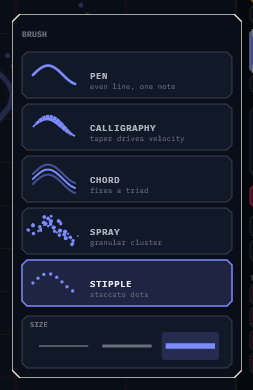
  • BRUSH button — tap to open the brush popover: large tiles with a live preview of each brush (Pen / Calligraphy / Chord / Spray / Stipple) plus a SIZE strip, all in the selected lane's color. Picks the brush + size for the next stroke. Tap away (or the button stays lit showing the current brush). See § Brushes.
  • ERASE button — toggle warm-red eraser tool. While on, plane touches sweep-erase rather than draw.
  • ARM button — toggle warm-yellow arm tool. While on, taps cycle stroke state Armed → Ghost → Muted → Armed.
  • TONE panel — four drag-to-set bars: BDY (body wet/dry), DEC (pluck decay), BRI (pluck brightness), RVB (reverb wet).

ERASE and ARM are mutually exclusive; activating one auto-disables the other. Default is DRAW (neither lit).

Drawing Strokes

The core gesture. Each stroke captures position + thickness + draw-speed; the playhead later turns it into musical events.

What gets captured

  • Position — every drag point, normalized to 0..1.
  • Pen thickness — captured at touch-down. Fine / Med / Fat. Sets note duration min and velocity baseline.
  • Brush type — captured at touch-down (Pen / Calligraphy / Chord / Spray / Stipple). Determines how the stroke is drawn AND what a playhead crossing fires. See § Brushes.
  • Per-point width (Calligraphy) — width tracks your draw speed moment-to-moment (fast = thin, slow = thick); the playhead reads the local width as velocity, so one gesture swells and fades.
  • Draw speed — average px/sec captured on release. Modulates velocity ±0.15 around the thickness baseline (Pen).
  • Lane color — whichever lane the finger landed in (see multi-touch below).

Each in-flight stroke renders at full saturation in its lane color. On release it joins the committed strokes at dim baseline alpha. Single-tap-with-no-drag is rejected (< 2 captured points).

Multi-Touch Parallel Drawing

Up to four fingers can draw simultaneously, one per lane. The first finger lands on the SELECTED lane (so single-finger drawing works as before); subsequent fingers fan out to the next free lanes in order. Each in-flight stroke renders in its own color. Lift any finger and that stroke commits; other fingers keep drawing independently.

Killer gesture This is the killer performance gesture — paint a four-color phrase in one swoop.

Pinch-to-Scale

Two-finger pinch on the plane scales every stroke in the SELECTED lane around the pinch midpoint:

  • Spread fingers → grow strokes outward
  • Close fingers → shrink strokes toward midpoint
  • Lift either finger → end pinch (transformed strokes stay where they ended)

A small accent-colored + cross + ring marks the scaling anchor while pinching. Pinch only triggers when exactly ONE in-flight stroke exists AND it has barely moved (< 8 px). If a stroke has been drawn for real (drag > 8 px), the second finger becomes a parallel-draw in another lane instead.

Erasing Strokes

  1. Double-tap any stroke (in DRAW mode) — instant one-shot erase. Hit-test threshold is 14 px; closest visible stroke wins regardless of lane.
  2. ERASE tool (side rail) — toggle warm-red ERASE. While on, any tap or drag through strokes erases them (4 px movement threshold for drag-erase). Pinch and draw paths are disabled. Tap ERASE again to return to DRAW.

Mirror copies are NOT separately tappable for erase — tap the original to remove all its mirrors.

Brushes — Pen · Calligraphy · Chord · Spray · Stipple

In Glyph the drawing is the score, so a brush isn't a paint style — it changes what a playhead plays when it crosses the stroke. Pick one from the BRUSH popover on the side rail (large tiles with a live preview + a SIZE strip). The brush is captured per-stroke at touch-down, so you can mix brushes freely across lanes and even within one lane. Brush + size persist with the patch.

Glyph brush popover — Pen, Calligraphy, Chord, Spray, Stipple tiles with a SIZE strip
The BRUSH popover — each tile shows a live preview of how the brush draws and plays.
BrushLooks likeA crossing playsReach for it when
Peneven lineone note, fixed velocityprecise, predictable lines (the default)
Calligraphyspeed-tapered ribbonone note; velocity from the LOCAL widthyou want dynamics — a gesture that swells and fades
Chordparallel 3-line banda diatonic triad (root + 3rd + 5th)instant harmony from a single line
Sprayscattered dot clouda short in-scale granular clustertexture, clouds, shimmer
Stippleevenly-spaced dotsa crisp staccato noterhythmic, plucky runs (shines under TRACE)

Calligraphy

Width tracks your draw speed — sweep fast and the line thins, slow down and it presses wide. Each playhead crossing reads the width at that point as velocity, so a single swooping stroke plays a crescendo or decrescendo. The SIZE setting is the base width the taper rides around. This is also how you get "thick vs thin" lines — there's no separate fixed line-size beyond the three SIZE steps.

Chord

A crossing fires a three-note triad instead of one note: the root plus the 3rd and 5th scale degrees above it, so the chord always lands in the active scale (and follows the scale sequencer). It renders as the main line flanked by two dim parallel echoes — the band you see is the chord you hear. Upper voices play a touch softer so the root leads. Great for turning a melodic contour into a chord progression in one gesture.

Spray

The stroke becomes a cloud of dots, and a crossing fires a short granular cluster — 3 / 4 / 5 grains (by SIZE) scattered across nearby scale degrees, soft and lightly varied so the burst reads as texture rather than a hard stack. The dot cloud is deterministic: it's stable across repaints and across save/reload, so a sprayed patch always looks the same.

Stipple

Renders as an evenly-spaced dotted line, and forces a short, staccato note regardless of how long the stroke is — so a stippled line plays as a crisp, plucky run. It's especially alive under TRACE, where the sweep reads along the dotted contour as a rhythmic sequence.

Mixing brushes Because the brush is stored per-stroke, a single lane can hold a Calligraphy swell, a Chord stab, and a Spray cloud at once — each fires its own way as the playhead passes. Combine with per-stroke ARM state and lanes for rich, layered performances.

Reading Modes — DUAL · ORBIT · TRACE

Each lane reads its strokes via DUAL or ORBIT (per-lane MODE chip). The global TRACE toggle overrides both with continuous-trace fire.

DUAL (default)

Two sweep lines: vertical (H, moves left → right) and horizontal (V, moves top → bottom). Each crosses strokes independently.

  • H sweep fires a stroke when the line passes the stroke's leftmost X. Pitch from Y at that point — top of plane = high, bottom = low (±12 semitones around middle C).
  • V sweep fires when the line passes the topmost Y. Pitch from X at that point — right = high, left = low.
  • A stroke fires from BOTH axes per pass at different pitches.

ORBIT

The sweep is a rotating ray from plane center, sweeping clockwise. One full rotation per "sweep at the lane's rate" (so rate 1× + ORBIT = one rotation per bar).

  • Trigger angle = the angle of the FIRST POINT you drew (where you tapped down). Where you start = when in the rotation it fires.
  • Pitch = radial distance of the first point (center = low −12 st, edge = high +12 st around middle C).
  • Reference circles show at half- and full-radius for the selected ORBIT lane.

TRACE (global)

When the TRACE chip is on, every lane (regardless of its MODE chip) reads strokes continuously instead of one-fire-per-pass:

  • At each quantize tick the sweep crosses, find every intersection of (sweep line / ray) with every stroke.
  • Snap each intersection's pitch to scale.
  • Fire only pitches NOT in the previous tick's cache (pitch-change gate prevents spam).
ShapeTRACE plays
Horizontal lineone held note across its width (no retrigger while pitch holds)
Diagonal linescale run, one note per scale-degree change
Circlecontrary-motion duet (top arc rises while bottom arc falls, converge on right)
Vertical linechord stab on the tick that lands inside
Squiggledense in-key arpeggio
TRACE needs a clock QNT must be non-OFF for TRACE to fire (no grid = no clock). TRACE works in BOTH DUAL and ORBIT lanes — the per-lane MODE chip still controls the sweep direction. For ORBIT-TRACE, a circle around plane center generates a contrary-motion arpeggio per rotation.

Plane Warps — MIR-H · MIR-V · ROT

Three global non-destructive warps. Original strokes stay untouched; warps generate virtual copies at fire-time and render-time.

All three live in the WARP popover — tap the WARP ▾ chip in the top bar. The chip itself shows lit H V R badges so you can read the active warps without opening it. Inside the popover:

  • MIR-H / MIR-V — large on/off toggles.
  • ROTATION — a rate row (OFF · 1/16 · 1/8 · 1/4 · 1/2 · 1X revolutions per bar) plus a direction row (CW / CCW). OFF is a single tap.
Glyph with MIR-H mirror warp active — strokes reflected across the vertical centerline
MIR-H active — the right-hand drawing reflects to the left as a virtual copy.

MIR-H

Reflects the plane across the vertical centerline. A stroke at right also exists at left. In DUAL: pitch axis preserved (mirror in the X). In ORBIT: angle reflects (3 o'clock ↔ 9 o'clock; 12 + 6 fixed).

MIR-V

Reflects across the horizontal centerline. A stroke at top also at bottom. In DUAL: Y flips so the pitch axis flips (high becomes low). In ORBIT: angle reflects (12 ↔ 6; 3 + 9 fixed).

ROT (continuous rotation)

In the WARP popover, pick a rate (OFF · 1/16 · 1/8 · 1/4 · 1/2 · 1X revolutions per bar) and a direction (CW clockwise / CCW counter-clockwise). The entire plane (strokes + mirror copies) rotates at the chosen rate; both audio fires AND visual render rotate together. Tapping OFF stops it in one tap.

  • ROT 1/16 — barely-perceptible drift over many bars
  • ROT 1× — one full rotation per bar; dramatic
  • CW vs CCW reverses the sweep of the rotation — pair opposing directions across lanes for counter-rotating motion
  • Combine with MIR-H + MIR-V for kaleidoscopic patterns

Drawing during active rotation: strokes appear under your finger AND rotate with the rest of the plane (the captured points are inverse-rotated to the original frame; render forward-rotates with current offset). Pinch midpoint and double-tap erase work in screen coordinates so gestures land where you visually expect. All three warps persist with patch state.

Per-Stroke State — ARM Tool

Tap ARM on the side rail (warm yellow when active, mutually exclusive with ERASE). Then tap any stroke to cycle its state.

StateAudioVisual
ARMED (default)fires every playhead crossingsolid stroke at normal alpha
GHOST (1st tap)~40% probability per fire opportunitydashed stroke at slightly higher alpha
MUTED (2nd tap)never firesghosted at 15% alpha
(3rd tap → back to ARMED)

Difference from lane mute: lane mute (M button) silences a whole color. Stroke mute silences ONE drawn line. Build up dense planes, then dial individual strokes in/out for live arrangement. State persists with the patch.

Lanes & Polyrhythm

Four lanes, each with independent strokes (color-coded), reading mode (DUAL or ORBIT), loop length (sweeps × bars, via the LOOP dial), quantize (off · /16 · /8 · /4), mute and solo state, and MIDI channel (configured in Settings → MIDI tab).

LANE 1MIDI Ch 1
LANE 2MIDI Ch 2
LANE 3MIDI Ch 3
LANE 4MIDI Ch 4

Lane colors come from the selected Color Palette (Settings), so all four lanes recolor when you switch palettes. Default MIDI channels are 1–4.

Polyrhythmic example: give each lane a different LOOP length — Lane 1 = 1 bar, Lane 2 = 2 bars, Lane 3 = 3 bars, Lane 4 = 4 bars (or vary the sweeps-per-loop) — and the four sweep markers drift apart over time, four firing patterns interlocking musically. With TRACE on, the polyrhythm becomes polytemporal melodic ribbons.

Pen, Color, Mute & Solo

(See § Side Rail for layout.)

  • Lane swatch — tap to select the lane
  • M — per-lane mute (warm red when active)
  • S — per-lane solo (warm yellow when active); any-soloed mutes non-soloed
  • Pen thickness — Fat / Med / Fine, sets velocity baseline + duration min for the next stroke
PenVisualMin durationVel base
Fine1.5 px~1/320.55
Med3.0 px~1/160.75
Fat5.5 px~1/80.95

Pen thickness also sets the base SIZE for every brush — Calligraphy tapers around it, Spray scales its cloud density/spread, Stipple its dot spacing. Set it from the 3-zone rail selector or the SIZE strip in the BRUSH popover.

Quantization & Scales

Onset quantize

Tap the QNT chip to open the quantize popover and pick a grid for the selected lane. When non-OFF, each stroke's trigger position snaps to that grid (16 / 8 / 4 slots per sweep traversal). The stroke fires when the sweep crosses the SNAPPED position, not the raw geometry — sloppy drawing still lands on the beat.

  • rate + /16 = 16ths per bar
  • rate + /16 = 32nds per bar

Scale snap

Every fire runs through ScaleManager::snapToScale before reaching the synth or MIDI output. Sixteen scales available: Chromatic, Major, Minor, the modes (Dorian etc.), Pentatonic, Blues, Harmonic Minor, Melodic Minor, Whole Tone, Diminished H-W / W-H, Arpeggio. Change the scale mid-performance and every subsequent fire transposes immediately.

Scale Sequencer

Same as fingerbang's scale sequencer (shared core component). On the SCALE page, tap SEQ in the timeline strip to enable. Add segments with +; tap any segment to edit (root, scale, length 1–16 bars). The active root + scale follow the segment under the bar position automatically.

Microtuning — Tuning Systems

Glyph can play in non-Western tuning systems — the real intonation of maqam, raga, and historical tunings, not just their notes approximated on 12 equal steps. A tuning system is global: it sets how many pitches divide the octave and their exact frequencies, applied to everything the playheads trigger. The scale/segment chooses which of those pitches form the current mode.

Choosing a system — tap the TUNING ▾ chip on the bottom scale strip or the SCALE tab. Eleven systems ship:

SystemDivisions / octaveCharacter
Western 12-TET12 (equal)The default — standard tuning, no retuning
Pythagorean12Pure fifths (3-limit)
Just Intonation12Pure thirds + fifths (5-limit)
Arabic 12-tone12Neutral 2nd / 3rd approximation
Chinese pentatonic12 (5 used)Just pentatonic
Indian raga (12)12Just raga scales
Arabic maqam (24)24 (quarter-tones)Rast · Bayati · Hijaz · Saba
Turkish makam (53)53 (Holdrian comma)Rast · Uşşak · Hicaz
Indian 22-shruti22 (just)Yaman · Bhairav · Kafi
Persian dastgah24 approxShur · Homayun · Mahur
Chinese 12-lü12 (Pythagorean)Gong · Shang · Jue · Zhi · Yu

When a non-Western system is active the SCALE tab swaps the circle of fifths for a tuning wheel (the system's pitches placed around the octave by their true cents) and the keyboard strips become N-division strips.

How it sounds — the internal pluck monitor plays the exact tuned pitch, and in TRACE mode the glide bow slides to the tuned scale tone (QNT on). MIDI Out delivers it as nearest note + per-lane pitch bend (each lane has its own MIDI channel). The active system is saved with the patch; Western 12-TET (default) sends no bend.

Note Degree values for maqam / shruti / dastgah are faithful approximations — close enough to play in convincingly, refined over time.

Sound — Pluck + Body + Reverb

Glyph has a built-in mono Karplus-Strong pluck monitor convolved through a measured guitar body IR (CC0 from pe_mace's Freesound pack), then through a Freeverb-style reverb. You always hear the internal sound regardless of MIDI routing. External MIDI output is per-lane configurable (Settings → MIDI tab).

Stroke fire → Pluck voice (16-poly) → Body convolver (guitar IR) → Reverb → Output

TONE controls

Four drag-to-set bars on the side rail (0–99 readout):

ControlRangeEffect
BDY0..99Body convolver wet/dry mix. 0 = pure dry pluck, 99 = pure body-convolved
DEC0..99Pluck decay (loop gain). Low = staccato, high = long sustained ringing
BRI0..99Pluck excitation HF content. Low = warm/dark, high = sharp/bright
RVB0..99Reverb wet mix. Auto-bypasses below 1% to save CPU

Damping, stiffness, and reverb size/predelay/damping/width all use sensible defaults internally. All four tone params persist with the patch — a "warm and long" preset and a "tight and bright" preset save independently.

Presets

Glyph saves the patch state (strokes + lane settings + warps + tone + scale) as a preset. In the SONG tab a preset is also called a "pattern" — they're the same thing.

The preset chip in the top bar shows the currently-loaded pattern's name with a chevron. Tap it to open the pattern browser — factory patterns (read-only) on top, your patterns below, organised into folders:

GestureAction
Tap a patternLoad it instantly — the loaded one is marked LOADED
Tap a folderOpen / close it
+ SAVESave the current patch into the selected folder (saving over an existing name overwrites it in place)
+ FOLDERCreate a folder inside the selected folder (top level if none selected)
Pencil / trash (on the selected row)Rename / delete — double-clicking a name also renames
Drag a pattern onto a folderMove it there; drop onto another pattern to slot it at that position

Deleting a folder never deletes its patterns — they move up to the parent. The browser opens with the loaded pattern revealed.

Renaming is song-safe — song steps reference patterns by name, and a rename made in the browser updates every song step that points at the old name automatically.

User presets live in %APPDATA%/Glyph/Presets/<name>.xml (Windows) or the equivalent on macOS; the folder organisation is stored alongside them.

State NOT in presets MIDI routing config (per-lane channel + octave + CC output mappings), theme + lane colors (surface theme + color palette), and the SONG itself — songs are independent of patterns; the song persists with the plugin state (DAW save) but is NOT part of any single preset's XML. Those persist across patches because they're rig setup, not patch identity.

Settings, Themes & MIDI Routing

Tap GLYPH in the top bar to open the Settings dialog (three tabs: Settings / MIDI / About).

  • Settings — surface theme, color palette, per-lane color swatches, UI scale.
    • Surface Theme — changes the whole instrument's atmosphere: Dark, Midnight (blue-black), High Contrast, Void (pure black / green accent), Warm (brown-black / amber accent). Canvas, panels, grid tint, text, and accent all shift; the SCALE tab and bottom strip follow too.
    • Color Palette — recolors all four lanes (strokes + swatches). Alongside the originals (Cyberpunk, Neon, Pastel, etc.) there are three palettes tuned for drawing images on black — Aurora, Prism, Candy — whose four lane hues are spread far apart so simultaneous drawings stay distinct and glow on the dark canvas.
    • Color swatches — override any individual lane color (marks the palette as "Custom").
  • MIDI — per-lane note routing AND CC output: Enable / Channel (1-16) / Octave (-4..+4) per lane, plus a Route All master + shared channel. CC out has two sub-rows per lane (see § MIDI CC Output).
  • About — version, link, quickstart, features.

First-run defaults: lanes 1–4 pre-enabled on MIDI channels 1–4. Drop Glyph in Liveset, route to a synth, and it routes immediately.

MIDI CC Output — Modulate Other Instruments

Beyond notes, each lane can stream its scanned drawing data as MIDI CC — so a shape doesn't just play pitches, it can modulate a parameter (filter cutoff, etc.) on another instrument. Configure it in Settings → MIDI, where every lane has two independent CC mappings ("CC out 1" / "CC out 2") — send two streams at once, e.g. X position on one controller and Y on another.

Each mapping has three controls:

Enable
Turns this CC stream on. Independent of the lane's note-output enable, so you can send modulation without notes, or both.
CC number
Tap to pick the controller. The picker lists common named CCs (Mod Wheel, Volume, Pan, Expression, Resonance, Cutoff, Reverb, Sustain…) at the top, plus the full 0–127 range under "All".
Source
Which scanned value drives the CC (see below).
SourceWhat it sends
Contact XThe horizontal position where the playhead last crossed the ink (held between fires). Follows where you drew.
Contact YThe vertical position of the last contact.
Sweep PosThe playhead's 0→100% loop position — a per-lane ramp/LFO that streams continuously even with no strokes.

Defaults: slot 1 → Contact X, slot 2 → Contact Y — so enabling both immediately sends the drawing's X and Y as two CCs. Behavior: the CC rides the same channel as that lane's notes (or the shared channel under Route All). It's sent continuously while the host transport plays, and only when the 7-bit value actually changes — so it never floods the MIDI stream. The value holds at the receiver when you stop.

Recipe Draw a rising curve on Lane 1. In Settings → MIDI, enable Lane 1 CC out 1 = Contact Y → CC 74 (Cutoff), and route Lane 1 to a synth with its filter cutoff mapped to CC 74. Now the curve plays notes and opens the filter as the playhead climbs it — one gesture, pitch + timbre.

Workflows & Recipes

Recipe 1 · Polyrhythmic four-finger sketch

  1. Hit play.
  2. Put four fingers on the plane simultaneously, draw four short strokes in different positions.
  3. Each finger went into a different lane. Now set per-lane LOOP length: tap each lane's swatch, then the LOOP chip, and dial different sweeps×bars per lane for instant polyrhythm.
  4. Open WARP, turn on MIR-H, and set rotation to 1/4 — the patterns evolve.

Recipe 2 · Trace-mode melodic phrase

  1. Lane 1 DUAL, LOOP 1 bar, QNT /16. Draw an upward diagonal line across the plane.
  2. Tap TRACE. Hit play.
  3. The diagonal becomes a clean scale run, one note per 16th. Switch scale to Pentatonic — instant pentatonic riff.
  4. Add a circle on lane 2, set lane 2 ORBIT, LOOP 2 bars, QNT /8. ORBIT-TRACE on a circle = contrary-motion arpeggio per rotation.

Recipe 3 · Live arrangement with ARM

  1. Build a dense plane: many strokes across all four lanes.
  2. Tap ARM on the side rail.
  3. Tap individual strokes to cycle: dashed (ghost) for "sometimes," ghosted (mute) for "off."
  4. As the song progresses, tap to dial strokes in/out. Untouched strokes stay armed.
  5. Drop ARM (or hit ERASE for a more aggressive cut).

Recipe 4 · Kaleidoscopic generative pad

  1. Draw a single long curve in lane 1.
  2. Open WARP, turn MIR-H + MIR-V on. Now the curve has 4-fold symmetry.
  3. In the same popover, set rotation to 1/4 (try CCW). Slow rotation.
  4. Tap TRACE. Switch scale to Pentatonic.
  5. Endless evolving generative pad from one drawn curve.

Recipe 5 · Pinch + tone for tension

  1. Draw a wide stroke in lane 1. Hit play; hear the note.
  2. Pinch it inward (two fingers, close). The stroke shrinks; pitch range and duration both compress = punchier note.
  3. Pinch back out for sustain release.
  4. Drag DEC up for ringing tail; pull RVB up for atmosphere.

Recipe 6 · Save patch banks for live use

  1. Build patch A. Tap the preset chip → + SAVE → "verse."
  2. Hit CLEAR ALL. Build patch B. Save as "drop."
  3. CLEAR ALL → patch C. Save as "outro."
  4. Put all three in one folder (+ FOLDER → "set one", drag them in) so the whole set sits together.
  5. Live: tap the preset chip and tap any patch to instantly load it.

Recipe 7 · Build a song from saved patterns

  1. Save 3–5 different patches as patterns (see Recipe 6) — give them recognisable names.
  2. Switch to the SONG tab. The library shows a thumbnail of every saved pattern.
  3. Tap a pattern → it appears in the song timeline as x1. Tap it again → x2. Again → x3. (Each tap = +1 bar.)
  4. Tap a different pattern → starts a new step. Build up the form: INTRO x4 · VERSE x8 · CHORUS x4 · VERSE x8 · OUTRO x2.
  5. To tweak a step's length, tap it in the timeline — cycles bars 1 → 2 → … → 16 → 1. Long-press to delete.
  6. Start your host transport, then tap PLAY SONG. The engine waits for the next bar boundary, then loads each step's pattern in sync. The currently-playing step pulses cyan with a progress bar across its top.
  7. The song loops forever. CLEAR empties it.

Recipe 8 · Layer brushes for a full texture

  1. Lane 1: tap BRUSH → Chord, draw a slow descending curve. Hit play — the curve plays a chord progression that follows your scale.
  2. Lane 2: BRUSH → Calligraphy, draw a fast-then-slow swoop. It plays a single melodic line that swells as you slowed down (velocity from the taper).
  3. Lane 3: BRUSH → Spray, SIZE Fat, scribble a small patch. It adds a granular shimmer cluster on every crossing.
  4. Lane 4: BRUSH → Stipple, draw a straight line, turn on TRACE with QNT /16. The dotted line plays a staccato rhythmic run along its length.
  5. Four brushes, four musical roles — harmony, melody+dynamics, texture, and rhythm — from four drawn gestures.

MIDI & Host Setup

Internal pluck monitor always plays (so you always hear what you drew). External MIDI is per-lane configurable in Settings → MIDI.

Stroke fire → ScaleManager.snapToScale → midiNote
              ├─→ Internal Pluck (always)
              │    → Body convolver → Reverb → audio out
              └─→ External MIDI on lane channel (if enabled)
                   → downstream synth

Master MIDI input passes through to the pluck monitor too — you can audition the engine from an external controller. In Liveset, use the per-tab chip to route Glyph's MIDI into another tab's plugin. Each lane's channel is preserved so the receiver can split per-channel.

Tips & Troubleshooting

Tips

  • Use scale snap aggressively. Pentatonic or Blues = no wrong notes.
  • Quantize tames sloppy drawing. /8 turns scribbles into clean phrases.
  • Multi-touch is the killer feature. Four fingers = four-color sketch in one motion.
  • TRACE turns shapes into melodies. Diagonals = scale runs, circles = contrary-motion duets, vertical lines = chord stabs.
  • Warps are non-destructive. Toggle MIR/ROT freely; your strokes are never harmed.
  • ARM is for arrangement. Build dense, then tap-tap-tap to dial in/out.
  • CLEAR ALL is destructive. Save first. (It does NOT clear the SONG, though — that's separate.)
  • One color per role. Lane 1 lead, 2 bass, 3 pad, 4 accent — readable for the audience.
  • Build patterns first, song second. Save 4–6 patches as patterns on the PLANE, then assemble the SONG by tapping them in order. Trying to build patterns inside the SONG tab is harder than building them on the PLANE.
  • Don't draw while a song is playing. The next bar boundary will reload the step's pattern and overwrite your edits. Stop the song to edit.

Troubleshooting

SymptomFix
No soundInternal monitor is always on; check audio device. If only external MIDI is silent, open Settings → MIDI and enable lanes / set channels.
Notes sound out of keyCheck the active scale on the SCALE page.
Pinch keeps starting strokesPinch only triggers if the first finger has drawn < 8 px. Tap-and-hold both fingers near each other before drawing.
TRACE silentMake sure that lane's QNT is not OFF. TRACE needs a grid clock.
ORBIT fires "wrong place"Trigger is the FIRST point you drew (tap-down location). Start the stroke where you want the fire to happen.
Multi-touch fingers all going to same laneBy design: the FIRST finger uses the selected lane; subsequent fingers fan to other lanes. Lift one finger to free its slot.
Erase mode drag is missing strokes4 px threshold; sweep more aggressively or use double-tap.
Stroke is dashed and barely firesIt's GHOSTED (~40% probability). Tap ARM, tap the stroke once to mute (silent), or twice to re-arm.
Preset chip shows "(NONE)"No saved patterns yet. Tap the chip → + SAVE to save your first.
SONG won't start playingMake sure the host transport is running. PLAY SONG arms the engine but it needs bar advances from the host to actually step. In standalone, use the standalone transport.
Pattern in the song says "(MISSING)"That pattern was deleted from the library after the song was built. Either restore the pattern (same name) or long-press the step to remove it. (Renames don't cause this — a rename in the browser updates song steps automatically.)
Edits to a pattern aren't showing in the songSongs reference patterns by NAME. After editing, save the pattern (Overwrite) so the next time the song loads that step it pulls in your changes.

Control Reference

Alphabetical.

ControlLocationValuesNotes
ARMSide railtoggleTap-cycle stroke state on plane (mutually exclusive with ERASE)
BDYSide rail TONEdrag 0..99Body convolver wet/dry
BRISide rail TONEdrag 0..99Pluck excitation brightness
BRUSHSide railpopoverPick brush (Pen / Calligraphy / Chord / Spray / Stipple) + size for the next stroke
CC out 1 / 2Settings → MIDIper-laneStream scanned data as MIDI CC: enable + CC number + source (Contact X / Contact Y / Sweep Pos)
CLEARSong transportbuttonEmpty the song (patterns themselves are not touched)
CLEAR ALLTop barbuttonReset whole patch (strokes + warps + tone + scale; NOT MIDI/theme/SONG)
Color PaletteSettingsdropdownRecolor all lanes; image palettes Aurora / Prism / Candy
DECSide rail TONEdrag 0..99Pluck decay (loop gain)
DUAL · ORBITTop bartoggleReading mode for selected lane
ERASESide railtoggleSweep-erase strokes (mutually exclusive with ARM)
GLYPH (title)Top barbuttonOpen Settings dialog
L<N> badgeTop bardisplaySelected lane indicator
Lane swatchesSide railtapSelect active lane
Library thumbnailSONG librarytapAppend a 1-bar step (or extend last step by 1 bar)
LOOPTop barpopup (dial)Per-lane loop length (sweeps × bars)
MSide rail (per lane)toggleMute lane
MIR-H / MIR-VWARP popovertoggleGlobal plane mirrors
QNTTop barpopupOnset quantize for selected lane (OFF / /16 / /8 / /4)
Pen thicknessSide rail3-zoneFat / Med / Fine base size for next stroke (also in the BRUSH popover SIZE strip)
PLANE · SCALE · SONGTop bartabPage selector
Plane double-tapPlanegestureOne-shot erase nearest stroke
Plane drag (1 finger)PlanegestureDraw stroke in selected lane (or in a free lane if multi-touch)
Plane pinch (2 fingers)PlanegestureScale selected lane's strokes around midpoint
PLAY SONG / STOP SONGSong transporttoggleArm / disarm song playback (waits for next bar to start)
Preset chipTop barbrowser (folders)Tap = load, drag = move, + SAVE / + FOLDER, per-row rename/delete
ROT (rotation)WARP popoverrate + dirOFF / /16 / /8 / /4 / /2 / 1X rev/bar, direction CW or CCW
RVBSide rail TONEdrag 0..99Reverb wet mix
ROOT gridSCALE pageC–BTonic picker (dimmed under SEQ)
SSide rail (per lane)toggleSolo lane
SCALE gridSCALE page16 scalesScale type picker
SEQSCALE timelinetoggleEnable scale sequencer
Segment +SCALE timelinebuttonAdd scale-sequencer segment
Step (timeline)SONG timelinetap / long-pressTap to cycle bar count (1..16); long-press to remove
Surface ThemeSettingsdropdownWhole-instrument theme: Dark / Midnight / High Contrast / Void / Warm
TRACETop bar (reading cluster)toggleGlobal continuous-trace mode; ALL tag marks its plane-wide scope
TUNINGSCALE tab / strip chip11 systemsGlobal microtuning; default Western 12-TET
WARPTop barpopupOpen warp popover: MIR-H / MIR-V + rotation (rate + CW/CCW). Chip shows lit H/V/R badges