TouchMachines Fingerbang →
User Manual

Fingerbang

A touch-first melodic sequencer with a hexagonal keyboard. Touch hex cells to play notes — the sequencer captures your gestures and loops them, building layered melodic patterns from multitouch input.

Plugin · VST3 / Standalone MIDI Output 4 Lanes

Overview

Fingerbang is a MIDI-only instrument. It doesn't make sound on its own — it generates note events and sends them to whatever synth you point it at. What it does do is let you build complex, polyrhythmic melodic patterns with your fingers instead of clicks.

What it is

  • Four independent melody lanes, each with its own loop length, direction, and octave. Lanes default to 16, 12, 8, and 7 steps — a polyrhythm out of the box.
  • A Wicki-Hayden hex keyboard for performance. Columns move in whole tones; rows move in perfect fifths. Every scale has the same shape.
  • Live gesture recording. Touch the grid while the sequencer plays and your fingers overwrite the steps under them. Release and the loop keeps playing what you drew.
  • Scale-aware. Every note snaps to one of 16 scales. Change the root or scale on the fly, or chain changes across bars with the scale sequencer.
  • MIDI out only. Each lane is assigned to its own MIDI channel (1–4 by default). Route to any synth, hardware or software.

What it isn't

  • Not a synth. There is no audio engine — the plugin's audio output is silent by design.
  • Not a step-editor first. You perform patterns; step-level edits happen by re-touching specific cells while the step is current.
  • Not a drum machine. Lanes are melodic — pitched notes quantized to a scale.
Mental model Think of Fingerbang as a looper pedal for melodies, where each "pedal" (lane) has its own tempo cycle, and every note you play is forced into the chosen key.

Quick Start

Get a loop playing in under a minute.

  1. Load Fingerbang on a MIDI instrument track in your DAW, or open the standalone app.
  2. Route its MIDI out to a synth. In most DAWs each lane's channel (1–4) can fan out to a different instrument; or point them all at the same synth.
  3. Press PLAY in the top bar (or start your DAW transport — Fingerbang follows host).
  4. Tap the hex grid. Each cell is a note. The cell under your finger is recorded into whatever lane is currently selected, at whatever step is currently playing.
  5. Hold and move. As the sequencer advances, successive steps capture whatever cell your finger is on. Drawing a line across the grid draws a melody across steps.
  6. Release — the lane keeps looping what you drew.
  7. Switch lanes by tapping a different lane tab at the top, then repeat. Build layers.
The core gesture Touch · Draw · Release. That's the entire creative loop. Everything else — direction, ratchets, octave, scale — is refinement.

The Interface

Two pages, one top bar. The HEX page is where you perform and shape lanes. The SCALE page is where you pick keys and build scale progressions.

Top Bar

Persistent across both pages.

PLAY / STOP
Starts and stops the internal transport. When your DAW's transport is running, Fingerbang follows it automatically.
BPM
Effective tempo. Inherited from the host when available; in standalone, drag vertically on the readout to set it (up = faster, 20-300).
SLOW · NORM · FAST
Global time multiplier: 0.5× · 1× · 2×. Affects all four lanes equally — use it to half-time or double-time a pattern without editing loop lengths.
Preset chip
Shows the current preset's name ((NONE) until you save or load one). Tap to open the preset browser — see State & presets.
HEX · SCALE
Page selector.
Finger indicator
Shows the number of active touches. Useful on debug or to confirm multitouch is being received.

HEX Page

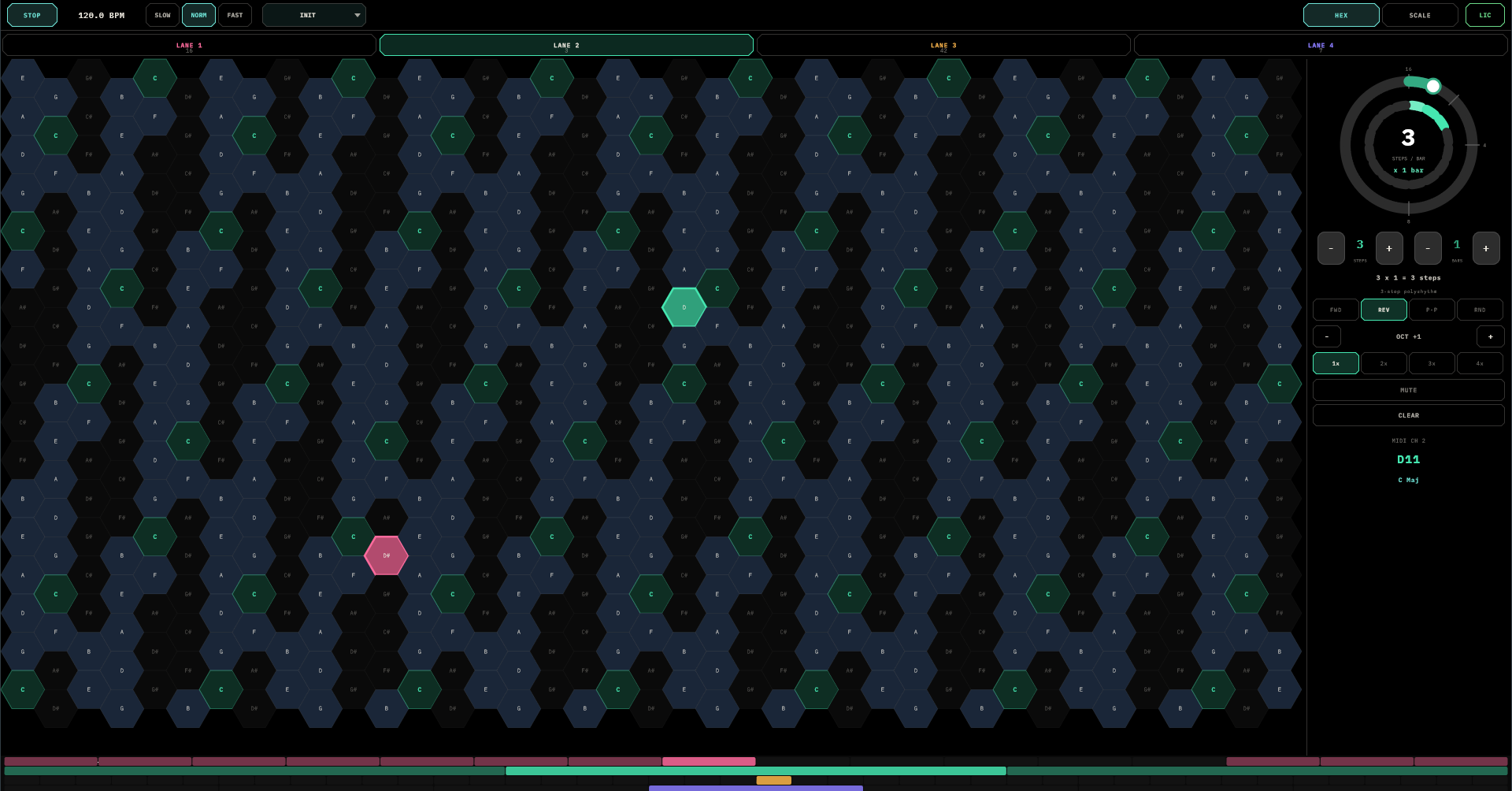
The performance surface. Four regions:

Lane Tabs (top row)

Four tabs, one per lane, each in its own colour:

LANE 1 · ROSE
LANE 2 · EMERALD
LANE 3 · AMBER
LANE 4 · VIOLET

Click a tab to make that lane the target of the right-side control panel. A small badge shows the lane's total step count. A muted lane is shown with a dimmed overlay.

Hex Grid (centre)

The playable keyboard. Details in § The Hex Keyboard. Cells glow in the lane's colour when that lane is playing. In-scale cells are lit; out-of-scale cells are dim (but still playable — they just won't match the key).

Step Bars (bottom)

Four stacked rows, one per lane. Each row shows that lane's steps laid out left-to-right:

  • Brightness — step velocity.
  • Filled — step has a note.
  • Highlighted — current step (the playhead).
  • Dimmed row — lane is muted.

Right Panel (lane editor)

Applies to whichever lane tab is selected. Covered in full in § Lane Controls.

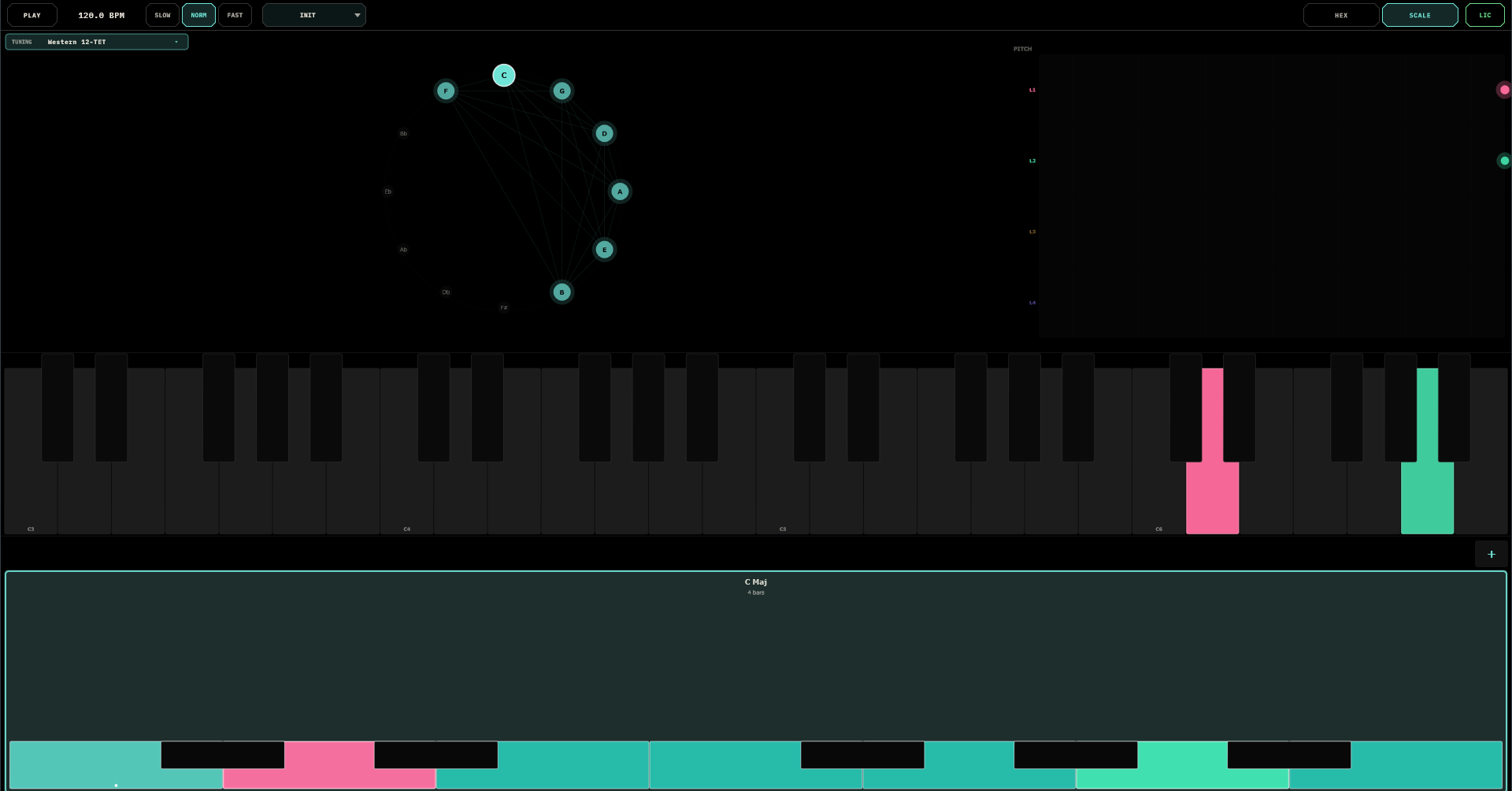
SCALE Page

Three stacked regions:

Root & Scale Pickers + Circle of Fifths (top)

  • ROOT grid — 12 pills (C through B). Picks the active tonic.
  • SCALE grid — 16 pills for the scale type (Chromatic, Major, Minor, Dorian, Phrygian, Lydian, Mixolydian, Locrian, Pentatonic, Blues, Harmonic Minor, Melodic Minor, Whole Tone, and more).
  • Circle of Fifths — visual selector. Click any node to set root. In-scale notes are highlighted and linked; out-of-scale notes shrink.
  • PITCH column — four vertical meters, one per lane, showing where each lane is currently playing in pitch space. Dot intensity decays with time since the last hit.
When the sequencer is active If the scale sequencer is driving root and scale, the ROOT and SCALE pickers are dimmed — the timeline is in charge. Turn SEQ off (or edit individual segments) to change keys manually.

Keyboard Strip (middle)

A two-octave piano view of the current scale. In-scale white keys light up in the accent colour; out-of-scale keys go dark. Small coloured dots under each key show which lanes are currently playing that pitch class.

Timeline (bottom)

The scale sequencer. See § Scale Sequencer.

The Hex Keyboard

Fingerbang uses the Wicki-Hayden layout — an isomorphic hex grid where every chord and scale has the same shape in every key.

The layout rule

  • Move one column right → up a whole tone (+2 semitones).
  • Move one row up → up a perfect fifth (+7 semitones).
  • Diagonals therefore give you minor thirds, major thirds, and octaves in consistent positions.

What this means in practice

  • A major scale is a simple zig-zag pattern. It is the same zig-zag in C, F♯, or any other key.
  • Triads are compact three-finger shapes. A major triad is one shape; a minor triad is another. Learn two shapes and you can play any diatonic chord in any key.
  • Roots (the tonic) are highlighted with a brighter fill and bold label so you can orient yourself visually.
  • In-scale cells have a lighter background; out-of-scale cells are dimmed but still functional.

Reading the grid

Note label
Pitch class of each cell (e.g., C♯, F).
Bright fill
Root note (tonic).
Medium fill
In-scale note.
Dark fill
Out-of-scale note.
Coloured glow
A lane is currently playing this cell. Colour tells you which lane.
Grid border lit
A finger is currently down; the selected lane is being overdubbed in real time.

Lanes & Polyrhythm

Fingerbang has four lanes. They run independently. Because each one can have its own loop length, they drift in and out of phase with each other — the source of Fingerbang's signature evolving patterns.

The default polyrhythm

Out of the box the four lanes are initialised to different step counts:

LaneStepsMIDI ChColour
116 (one bar of 16ths)1Rose
2122Emerald
383Amber
474Violet

With those lengths, the full pattern repeats every LCM(16, 12, 8, 7) = 336 steps — about 21 bars of 16ths. That's long enough to feel composed without ever being identical bar to bar.

Each lane has its own

  • Step count (1–16 steps per bar × 1–16 bars = up to 256 steps)
  • Playback direction (forward, reverse, ping-pong, random)
  • Octave offset (±4 octaves)
  • Ratchet count (1–4 hits per step)
  • Mute state
  • MIDI output channel
  • Stored pattern of notes, velocities, gates, and probabilities

Lane selection vs. lane assignment

Two different concepts worth separating:

  • Selection — which lane the right-side controls are editing. Set by clicking a lane tab.
  • Assignment — which lane a finger is recording into. Fingers are assigned automatically when they first touch the grid; the selected lane is the preferred target, but additional fingers can be distributed across lanes depending on gesture state.

Lane Controls

The right-hand panel on the HEX page, top to bottom. Every control applies to the selected lane only.

STEPS / BAR

A 4×4 grid of pills, 116. How many steps fit in a single bar for this lane. 16 is a straight 16th-note grid; 8 gives 8ths; 3 gives triplet-feel across a bar. Combine with BARS below for longer loops.

BARS

A 4×4 grid of pills, 116. How many bars the lane's loop spans. The display below shows the total step count (steps/bar × bars). Use this for long melodic phrases that exceed one bar.

Direction

FWD
Forward — plays step 0, 1, 2, …
REV
Reverse — plays backwards from the last step.
P-P
Ping-pong — forward then reverse, repeating.
RND
Random — jumps to a random step on each advance. Good for drones, pads, or generative textures.

Octave

and + buttons with a centre display (e.g., OCT +1). Shifts the lane ±4 octaves without changing the recorded cells.

Ratchet

Four buttons: , , , . The number of hits fired per step. Ratchets are evenly subdivided inside the step. Each successive hit is slightly softer than the last, for a natural decay feel.

Mute

Silences the lane's output without stopping its clock. The playhead keeps advancing, so un-muting later picks up in phase with the other lanes.

Clear

Erases every step in the selected lane. Use when starting fresh on a lane. (There is no undo — see Tips.)

MIDI CH / Current Note / Scale Info

Readouts: the lane's MIDI channel, the note currently playing (e.g., C♯4), and the active root & scale.

Scales & Quantization

Every note Fingerbang sends is forced into the current scale. You can't play a "wrong" note — but you do need to know what scale you're in.

How quantization works

When a step fires, the recorded pitch is compared against the active scale. If it's in-scale, it plays as-is. If it isn't, it's nudged to the nearest in-scale pitch. This happens at playback time, so changing the scale retroactively transposes every lane on the fly.

Included scales

Sixteen scales are available, selectable from the SCALE page or the scale sequencer:

  • Chromatic (no quantization)
  • Major, Minor
  • Dorian, Phrygian, Lydian, Mixolydian, Locrian (modes)
  • Pentatonic, Blues
  • Harmonic Minor, Melodic Minor
  • Whole Tone, Diminished, and related exotic scales

Setting key and scale manually

  1. Go to the SCALE page.
  2. Click a pill in ROOT to pick the tonic.
  3. Click a pill in SCALE to pick the scale type.
  4. Or click any node on the Circle of Fifths — equivalent to ROOT.
Same pattern, new key Record a line on the HEX page, then flip the root on the SCALE page. Your pattern re-harmonizes in real time — an instant transposition tool.

Scale Sequencer

Chain key and scale changes across a timeline so your progression modulates automatically, locked to the bar.

Enabling it

On the SCALE page, click SEQ in the timeline region. When lit, the sequencer drives root and scale — the manual pickers above dim to show they're inactive.

Segments

A segment defines a root, a scale, and a length in bars. When the timeline reaches the end of one segment it rolls into the next; when it reaches the end of the last, it loops.

  • Add a segment — click the + button (up to 16 total).
  • Edit a segment — click it. A popup opens with scale pills, root pills, and a bar-length picker (1, 2, 3, 4, 6, 8, 12, 16 bars).
  • DeleteDEL inside the popup (only visible when there is more than one segment).

What you see on the timeline

  • Each segment is drawn as a coloured rounded block, with width proportional to its length.
  • If the segment is wide enough, it shows its root, scale, bar count, and a mini-keyboard preview.
  • A vertical playhead sweeps across and snaps to the active segment.
Progression as automation The scale sequencer is effectively a chord-changes automation lane. Build C MajA MinF MajG Maj across four bars and your recorded lanes re-harmonize through the progression without you touching them.

Microtuning — Tuning Systems

Fingerbang can play in non-Western tuning systems — the real intonation of maqam, raga, and historical tunings, not just their notes approximated on 12 equal steps. A tuning system is global: it sets how many pitches divide the octave and their exact frequencies, applied to every lane. The scale you pick (manually or per segment) chooses which of those pitches form the current mode.

Choosing a system

Tap the TUNING ▾ chip at the top-left of the SCALE page. Eleven systems ship:

SystemDivisions / octaveCharacter
Western 12-TET12 (equal)The default — standard tuning, no retuning
Pythagorean12Pure fifths (3-limit)
Just Intonation12Pure thirds + fifths (5-limit)
Arabic 12-tone12Neutral 2nd / 3rd approximation
Chinese pentatonic12 (5 used)Just pentatonic
Indian raga (12)12Just raga scales
Arabic maqam (24)24 (quarter-tones)Rast · Bayati · Hijaz · Saba
Turkish makam (53)53 (Holdrian comma)Rast · Uşşak · Hicaz
Indian 22-shruti22 (just)Yaman · Bhairav · Kafi
Persian dastgah24 approxShur · Homayun · Mahur
Chinese 12-lü12 (Pythagorean)Gong · Shang · Jue · Zhi · Yu

When a non-Western system is active the SCALE page swaps the circle of fifths for a tuning wheel (the system's pitches placed around the octave by their true cents) and the keyboard strips become N-division strips.

How it plays

Fingerbang is MIDI-only, so microtuning is delivered as note + per-lane pitch bend: each lane's note snaps to the nearest in-scale degree of the system, and a pitch bend on that lane's MIDI channel carries the fine offset. Point your synth at the lane channels and it follows. The active system is saved with the patch; Western 12-TET (default) sends no bend.

Accuracy note Degree values for maqam / shruti / dastgah are faithful approximations — close enough to play in convincingly, refined over time.

Workflows & Recipes

Concrete starting points. Most of Fingerbang's musical depth comes from combining a few simple moves.

Recipe 1 · Evolving arpeggio from a single gesture

  1. Select LANE 1. Set STEPS/BAR = 16, BARS = 1.
  2. Start the transport. Hold a finger on the grid and slowly trace an upward diagonal across the hex cells as the playhead moves.
  3. Release. You now have a 16-step ascending line.
  4. Select LANE 2. Set STEPS/BAR = 12, direction REV. Draw a descending line.
  5. Select LANE 3. Set ratchet to , STEPS/BAR = 8. Tap just four cells at root-related positions — a bassline.

The three lanes phase in and out of alignment on a 48-step cycle.

Recipe 2 · Live chord changes

  1. Record two or three lanes of parts in C Major.
  2. Switch to the SCALE page and enable SEQ.
  3. Build a four-bar progression: C Maj · A Min · F Maj · G Maj, each 1 bar.
  4. Your parts re-harmonize automatically — every note snaps to the current segment's scale.

Recipe 3 · Generative drone

  1. Pick a lane and set its direction to RND.
  2. Set scale to Pentatonic or Whole Tone — no wrong notes.
  3. Tap a wide range of cells across the grid to populate steps with varied pitches.
  4. Lower the ratchet, raise the octave offset on one lane, lower it on another. The lane now emits an ambient random-pitch cloud in key.

Recipe 4 · Overdub without stopping

  1. With the transport running, select the lane you want to edit.
  2. Touch the cell you want at the moment the step you want to replace is current. Only that step is overwritten.
  3. Hold and drag to re-draw a run of consecutive steps as the playhead passes under your finger.
  4. Release — everything else is unchanged.

Recipe 5 · Half-time breakdown

  1. While a pattern plays, hit SLOW in the top bar. All four lanes halve speed.
  2. Mute lanes 2 and 4 for the breakdown.
  3. On a musical cue, un-mute and click NORM to drop back into tempo.

MIDI & Host Setup

Fingerbang outputs MIDI note events only. Everything downstream of it is up to you.

Signal flow

Touch  ─▶  Gesture engine  ─▶  Lane assignment
                                      │
                                      ▼
                              Live step overwrite
                                      │
          Transport clock ────────────┤
                                      ▼
                   Advance lanes (16th-note grid)
                                      │
                    Scale quantization + octave
                                      │
                      Ratchet expansion (1–4×)
                                      │
                                      ▼
                   MIDI Out (channels 1–4, one per lane)
                                      │
                                      ▼
                          Your synth / DAW track

Channel map

LaneDefault channelSuggested use
11Lead / melody
22Counter-melody / pad
33Bass
44Arp / texture

Routing to one synth

Point all four channels at the same multitimbral synth (e.g., Kontakt, a Reaktor ensemble, or four layers of a software synth set to different channels). Each lane triggers a different patch or preset.

Routing to different synths

In most DAWs, create an instrument track per lane, set it to listen to Fingerbang on channels 1, 2, 3, and 4 respectively. Each lane now drives a different instrument. This is the recommended setup for layered productions.

Transport

  • When your DAW is playing, Fingerbang follows host BPM and transport position.
  • In standalone mode, use the built-in PLAY/STOP; set the tempo by dragging vertically on the BPM readout.
  • SLOW/NORM/FAST applies on top of host BPM — use it for half-time/double-time without changing session tempo.

State & presets

Fingerbang saves its full state (all four lanes, scales, sequencer segments) with your DAW session — and the same state can be saved as a preset for instant recall across sessions and hosts.

Tap the preset chip in the top bar to open the preset browser. An Init factory preset (a clean four-lane slate) ships built-in; your saves are organised into folders:

  • Tap a preset to load it instantly; the loaded one is marked LOADED.
  • Tap a folder to open or close it.
  • + SAVE saves the current state into the selected folder; + FOLDER creates a folder there.
  • Pencil / trash on the selected row rename or delete (double-clicking a name also renames).
  • Drag a preset onto a folder to move it. Deleting a folder moves its presets up to the parent — nothing is lost.

The browser opens with the loaded preset revealed. User presets live in %APPDATA%/Fingerbang/Presets/, with the folder organisation stored alongside them.

Tips & Troubleshooting

Tips

  • Pick a scale before you play. Fingerbang quantizes in real time, but it can't rewrite the relative feel of a line — a pentatonic melody still sounds pentatonic no matter what scale you switch to. Commit to a key.
  • Use prime step counts. Lane lengths like 5, 7, 11, 13 phase against 16-step lanes for a very long time before repeating. Great for generative work.
  • Reverse is a harmony trick, not just a gimmick. Record an ascending arpeggio; duplicate it on another lane in REV at OCT −1. You've got contrary motion for free.
  • Drones from RND + Pentatonic. You cannot go wrong, literally.
  • Tune gestures with ratchets. Ratchet on one step turns a tap into a flam/roll. Use sparingly on accent steps.

Troubleshooting

No sound
Fingerbang is MIDI-only. Check you've routed its output to a synth. The plugin's own audio bus is always silent.
Sequencer not running
If you're in a DAW, make sure the transport is playing; Fingerbang follows host. In standalone, press PLAY.
Root / scale pickers don't respond
The scale sequencer (SEQ) is enabled and driving them. Disable it or edit the timeline segments instead.
Finger touches go to the wrong lane
Tap the lane tab first to select it, then touch the grid. Additional simultaneous fingers may be distributed across lanes by the gesture engine.
No undo
Fingerbang's state is immediate — there is no command-level undo. Use Clear to wipe a lane, or save often via your DAW's session.
Notes sound out of key
Check the root and scale on the SCALE page. Chromatic scale does not quantize.

Control Reference

Alphabetical index of every control, with page location and accepted values.

ControlPageValuesNotes
BARSHEX · right panel1–16Loop length in bars, per lane.
BPMTop barread-onlyInherits from host.
Circle of FifthsSCALE12 nodesClick to set root.
ClearHEX · right panelbuttonErases selected lane.
DirectionHEX · right panelFWD · REV · P-P · RNDLane playback mode.
HEX / SCALETop bartabPage selector.
Lane Tab 1–4HEX · toptabSelects lane for editing.
MUTEHEX · right paneltoggleSilences lane output; clock keeps running.
OctaveHEX · right panel−4 … +4Per-lane transposition.
PITCH metersSCALE · topread-onlyLive pitch-position display per lane.
PLAY / STOPTop bartoggleInternal transport.
Preset chipTop barbrowser (folders)Tap = load, drag = move, + SAVE / + FOLDER, per-row rename/delete.
RatchetHEX · right panel1× · 2× · 3× · 4×Hits per step.
ROOT gridSCALEC–BTonic picker (dimmed when SEQ active).
SCALE gridSCALE16 scalesScale type picker.
SEQSCALE · timelinetoggleEnables scale sequencer.
Segment +SCALE · timelinebuttonAdds a new segment (max 16).
SLOW · NORM · FASTTop bar0.5× · 1× · 2×Global time multiplier.
STEPS / BARHEX · right panel1–16Subdivisions per bar, per lane.
TUNINGSCALE page chip11 systemsGlobal microtuning; note + per-lane bend. Default Western 12-TET.